Keyboard and Drums
Keyboard
The Keyboard layout plays your scale on channel 1, with the key’s roots in orange. Press Scale to pick a key, or choose Chromatic in the scale menu to play every note. The Octave buttons shift an octave; each goes dark when it can’t go further.
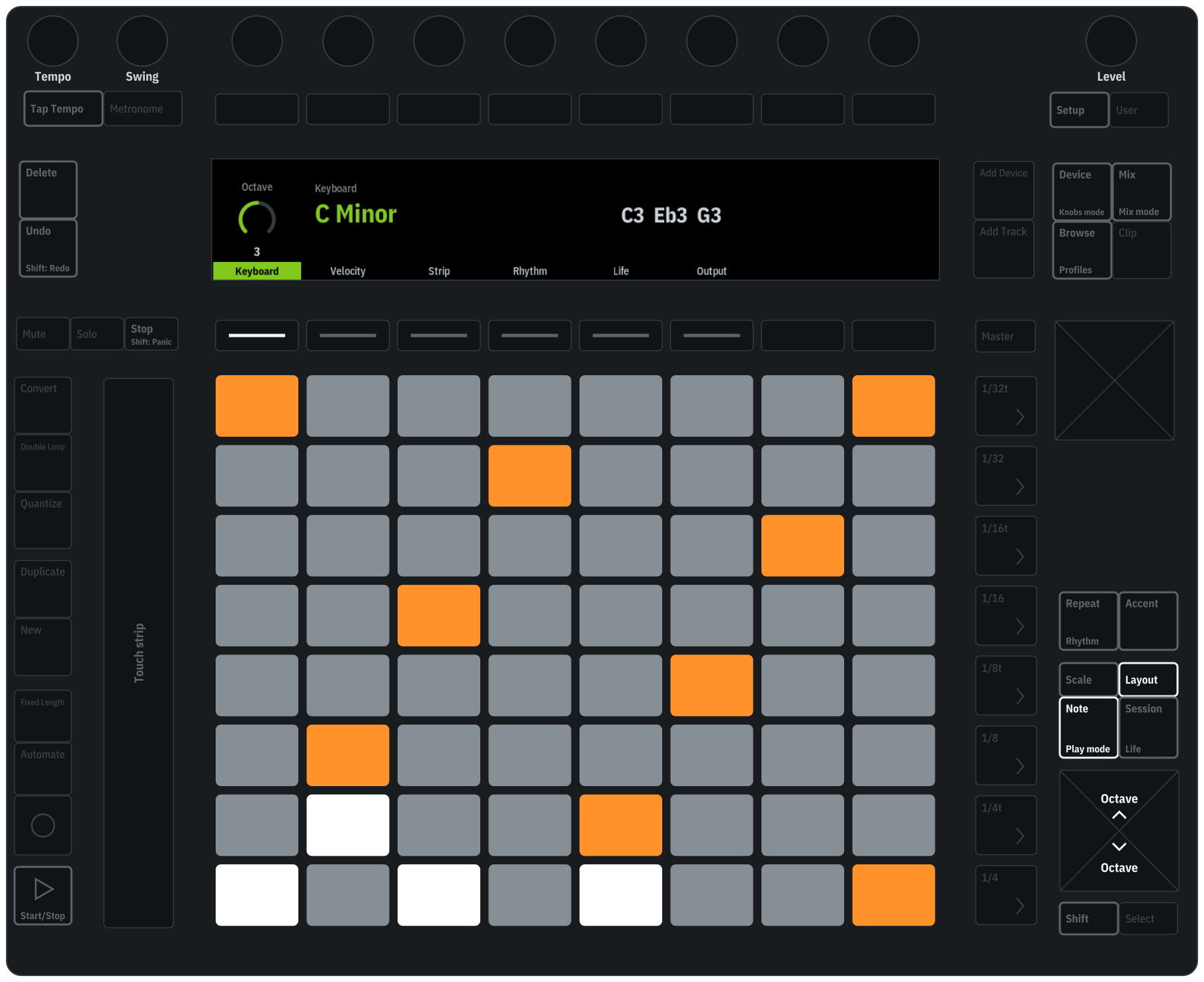 Keyboard: roots in orange, the rest of the scale in gray, held pads in white.
If a chord is latched in the chord grid, its notes glow teal on the keyboard so you can play a melody over it.
Drums
Drums play on channel 10 and use four banks of 16 pads, 4×4 each: bottom-left, bottom-right, top-left, top-right. The bottom-left bank is the General MIDI kit (notes 36–51).
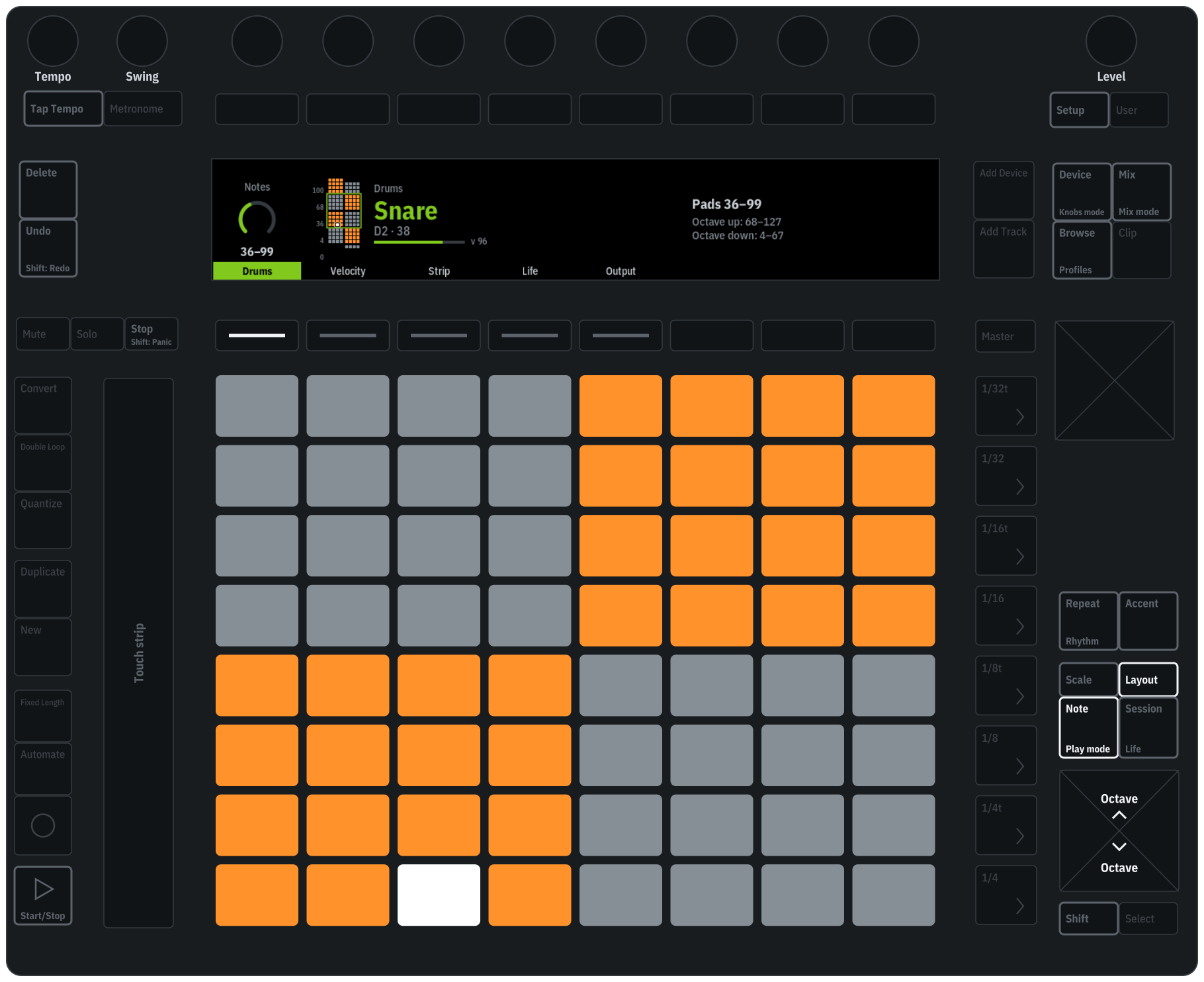 Drums: the General MIDI kit in the bottom-left bank, the snare held.
- The Octave buttons move the pads 32 notes (two banks) at a time.
- The Notes encoder on the Drums page moves them one bank.
- Banks always start in line with the kick (C2, 36), so it’s back at the bottom-left whenever you return.
The screen shows:
- A map of all 128 MIDI notes as banks of 16 in the same shape, with the four banks your pads play outlined.
- The drum you just hit: its name, note and how hard.
- The notes the pads cover, and where the Octave buttons would take them.
 The Octave buttons moved the pads to the top of the note map.
Velocity
Keyboard and Drums each have a Velocity page, with its own settings:
- Min and Max: the range your pads play in.
- Random with Spread: each note gets its own velocity near your hit, so a drum roll can sound like hands rather than a machine.
- Accent plays at the page’s Max.
The chord grid has the same page with a few extras: see Chord grid velocity. How hard you have to hit is set in Setup.
Output
On the Output page, any layout picks its MIDI channel and its destination. It can send straight to a hardware MIDI port instead of Pushtoo Out, so a USB-MIDI synth works without a DAW. The Play screen shows when a layout isn’t going to Pushtoo Out.
 The Output page: a layout sending straight to a hardware port.