Rhythm and clock
Repeat
Tap Repeat and held pads repeat at the rate lit on the side buttons (1/32t to 1/4, as printed on them). Press harder on a pad and its repeats get louder. Hold Repeat instead of tapping it for rhythm only while held.
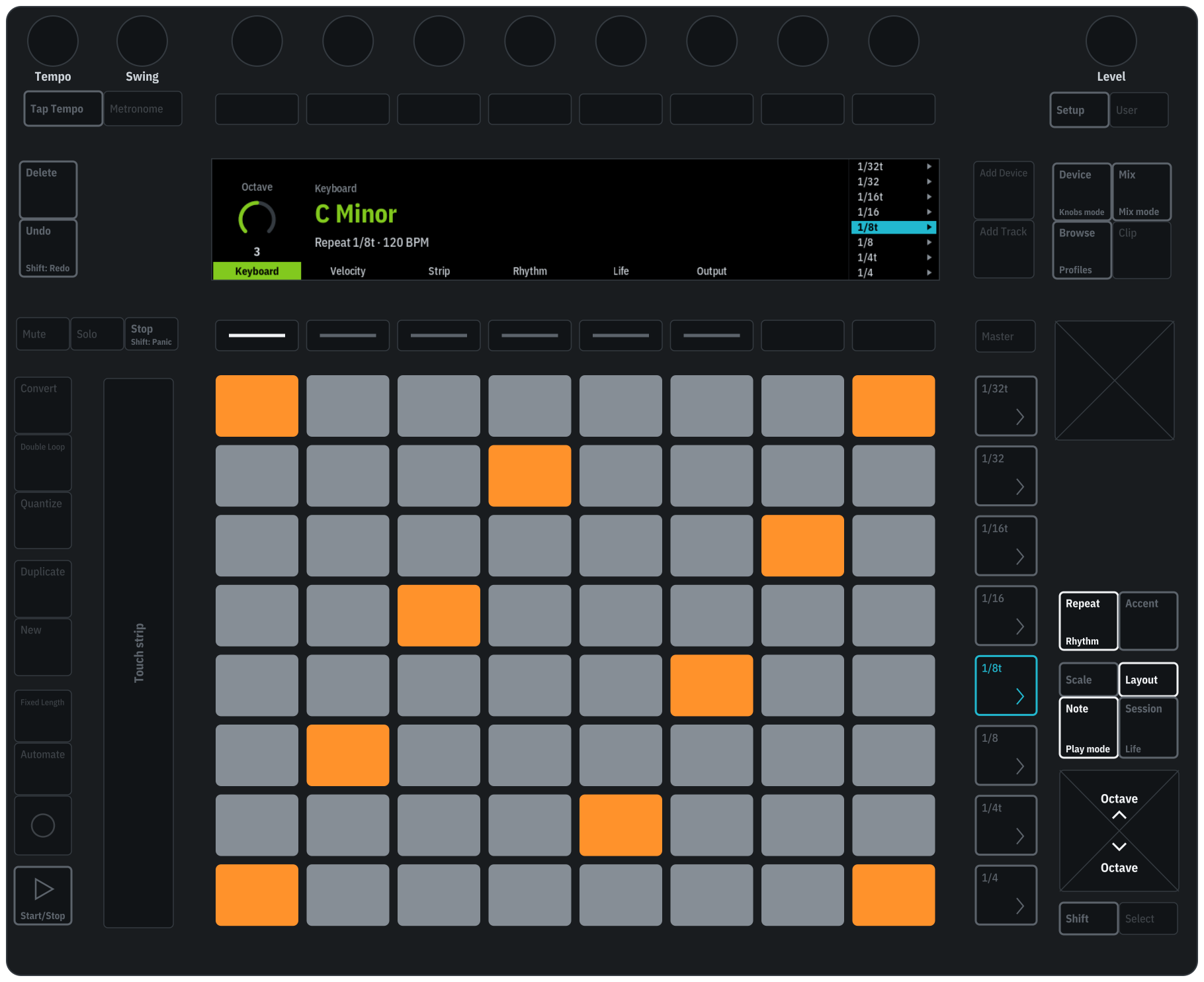 Repeat on: the rate lights on the side buttons (1/8t here) and the screen lists them beside it.
In the Chord layout the side buttons pick voicings, so hold Repeat and press a side button to pick the rate. There, Repeat retriggers the chord with its bass.
 Repeat held in the Chord layout: the side buttons are rates while you hold it.
Arpeggiator
The Rhythm page (Keyboard and Chord) switches between Repeat and Arp:
- Pattern: Up, Down, Up-down, As played or Random.
- Octaves: how many octaves it climbs.
- Gate: how long each note sounds.
In the Chord layout, Arp plays chord and bass note by note; Up starts from the bass, which stays on the bass channel. Latch keeps it going. Chord Timing applies to repeats and arp steps too.
 The Rhythm page.
Tempo and transport
- Tap Tempo: sets the tempo from your last four taps.
- Tempo encoder (left): the tempo; hold Shift for 0.1 BPM steps.
- Swing encoder (left): swing. Touch either encoder to see it at the screen’s left edge.
- Play: start and stop. Sends MIDI Start and Stop; the button flashes on each beat.
 Touch the tempo encoder and the tempo shows at the screen’s left edge.
MIDI clock
Pushtoo keeps its own tempo and sends MIDI clock on Pushtoo Out, so a synth or DAW can follow it. If your DAW sends clock to Pushtoo In, Pushtoo follows instead and says “Following clock” on screen. Both are switched in Setup > Clock.
Steps are scheduled ahead on the ALSA sequencer, so timing holds steady (under 1 ms) however busy Pushtoo is.